Speed
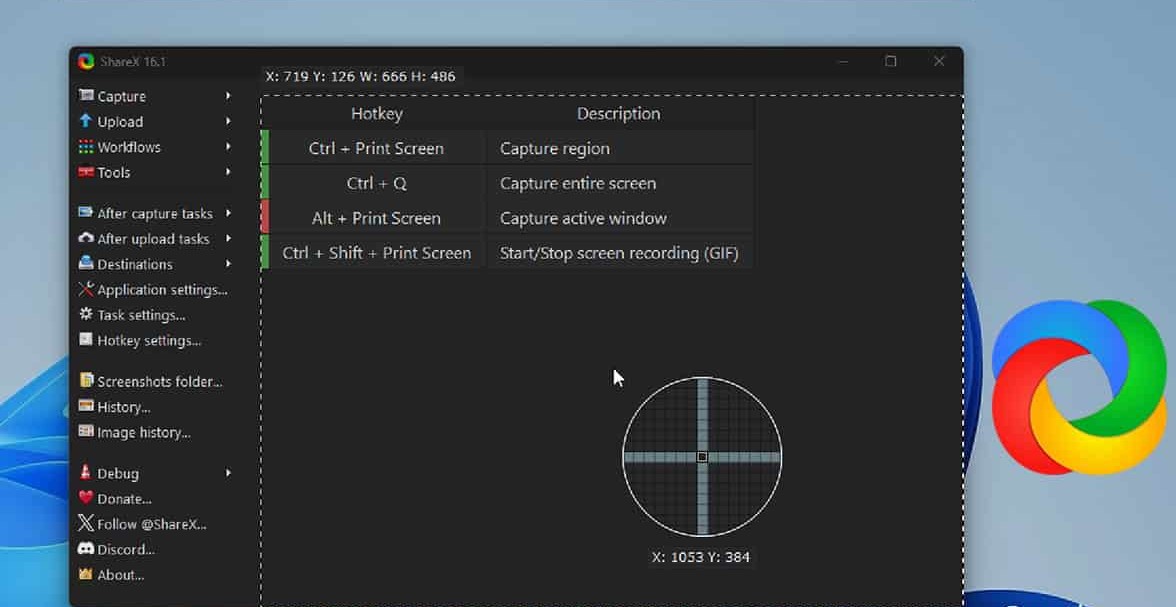
Assign different hotkeys per capture mode. After capture, auto-save to a folder, run OCR, or open the image editor without hunting through menus.
01 — Intro
Windows · Open source · Free forever
ShareX is a powerful screen capture and productivity suite for Windows. This guide explains what to install first, how capture and upload fit together, and where to look when something breaks. Jump to workflows, troubleshooting, or the FAQ; use the download section for the current Windows build linked on this page.
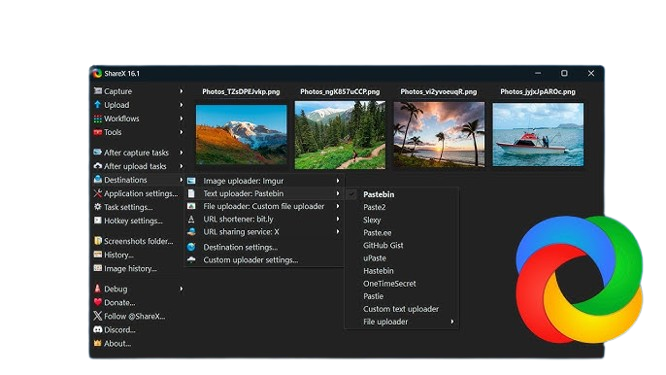
Illustrative imagery from the community.
03 — Features
The following sections mirror how documentation and long-time users describe the product. For release notes, see what ships with each new build or the download section on this page.
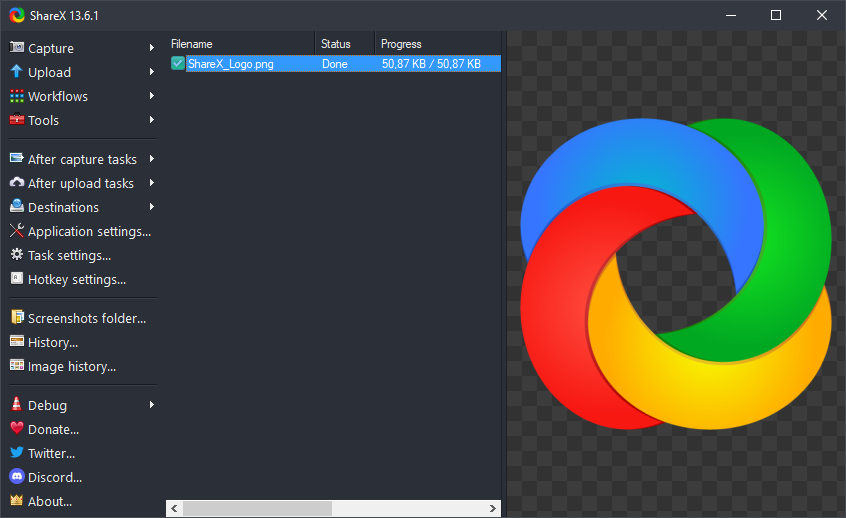
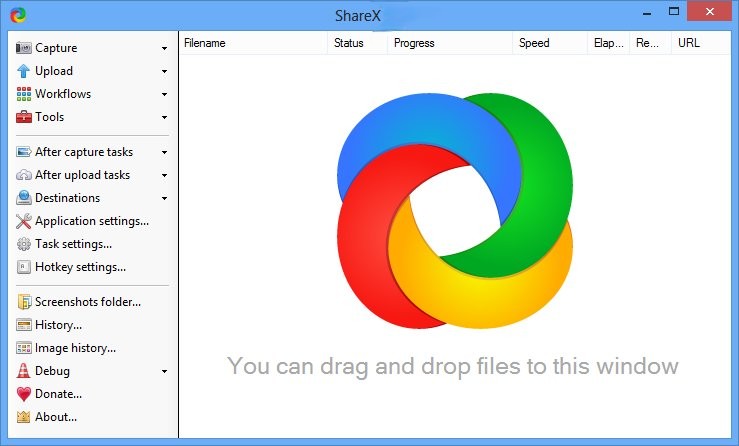
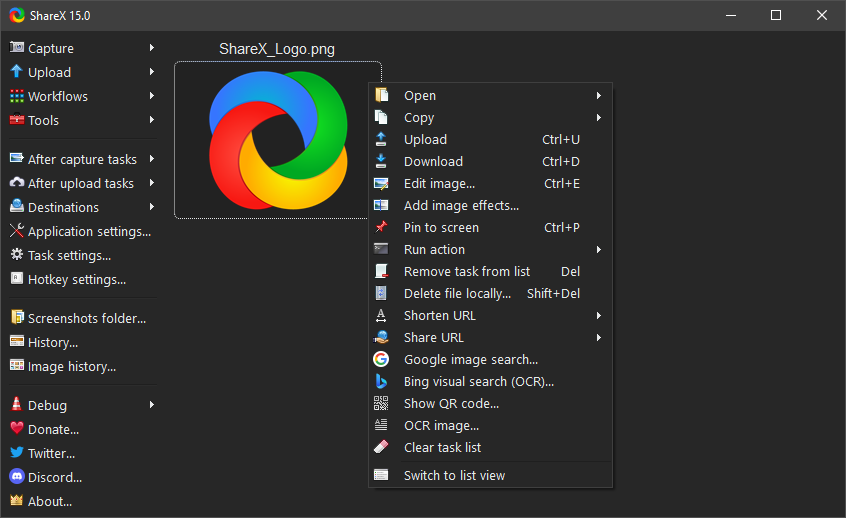
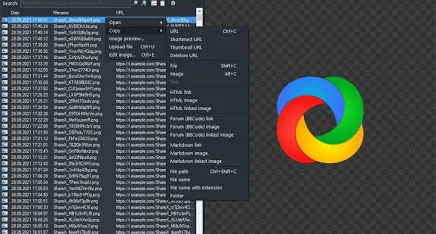
The list view shows recent workflows—helpful when you need to re-open a file, re-copy a URL, or verify which uploader ran. Filters and search reduce time spent digging through download folders.
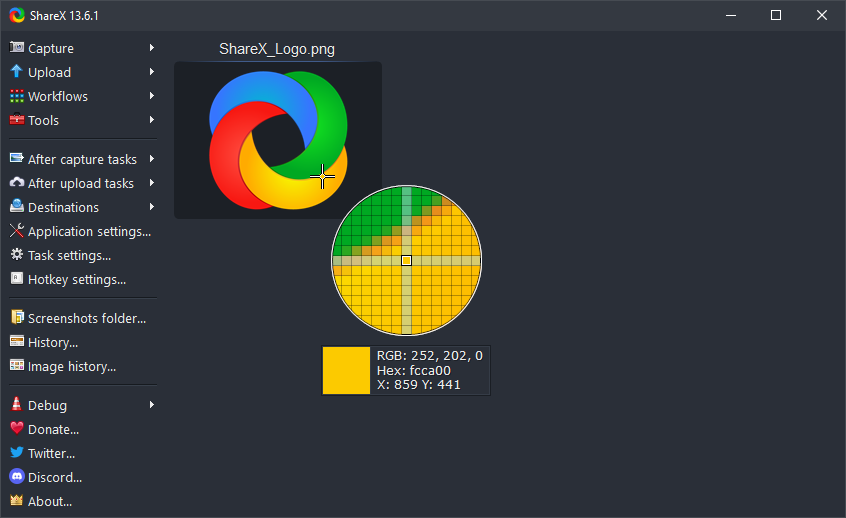
Designers and front-end developers use the picker to grab hex/RGB values from anywhere on screen, with history for comparing shades across apps and browsers.
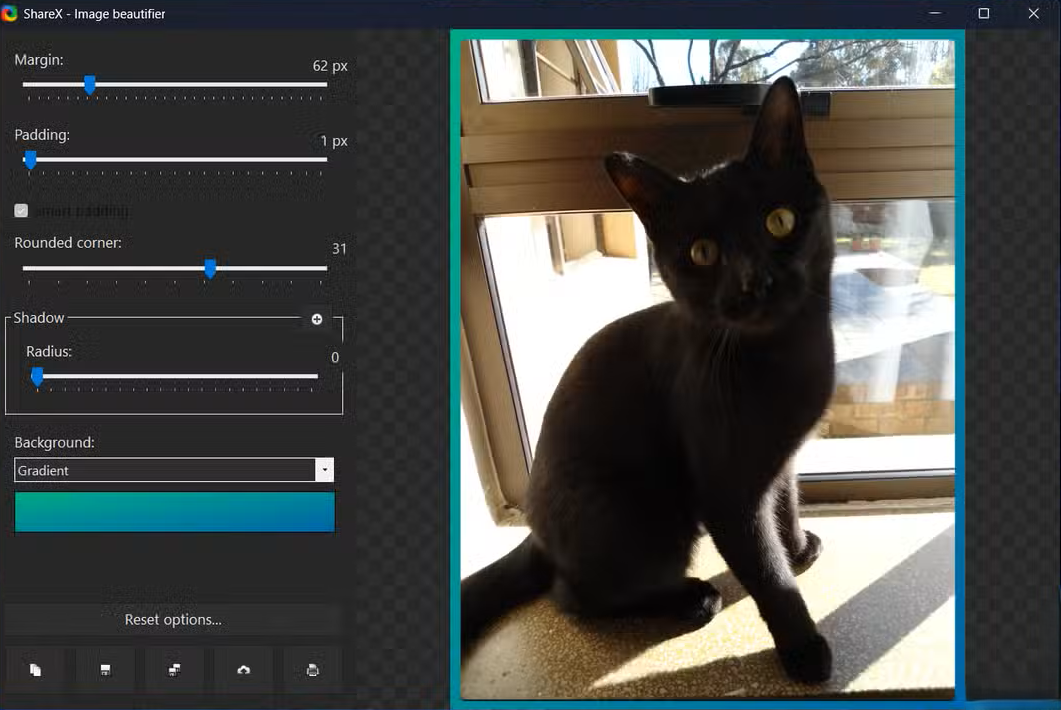
Watermarks, borders, shadows, and other image effects help keep screenshots consistent for docs and social posts.

Combine rectangle, window, and monitor targets with optional delay and cursor inclusion—common when capturing dropdowns or modal dialogs.
04 — Workflows
ShareX “tasks” connect capture types to post-capture steps. Below are patterns people reuse across teams once hotkeys and destinations are configured. When uploads, hotkeys, or capture modes misbehave, continue with troubleshooting.
Capture error dialogs, blur sensitive pixels in the editor, upload to a private bucket, paste the link into a ticket. Pair with scrolling capture for long logs.
Region capture with pixel-perfect dimensions, step annotations, and consistent file naming for regression folders.
Record clips or GIFs, trim in external tools if needed, and push to a CDN-backed uploader for fast embeds.
OCR for copying text from images, custom uploaders for internal APIs, and CLI arguments for scripting alongside CI screenshots.
Long pages and chat threads are easier to archive when scrolling capture stitches content vertically. Browser quirks and timing vary—check in-app help and community threads for current behaviour.
05 — Community
These are recurring themes from forums, Discord, and Reddit—not paid endorsements. They explain why ShareX stays installed after people try lighter tools.

“I replaced three utilities—snip, a GIF recorder, and a separate uploader—with one hotkey stack. The learning curve is real, but after exporting my settings to a file, onboarding a new PC takes minutes.”
Paraphrased pattern from community discussions
“Custom uploaders felt intimidating until I copied a template from the docs. Now screenshots land in the same bucket as our app assets, with predictable URLs for markdown docs.”
Typical workflow described by self-hosters
Keep hands on the keyboard: capture, annotate, upload, and paste a link without opening a browser uploader tab each time.
Some teams distribute the portable ZIP on locked-down machines where installers are restricted—verify policy with IT first.
Keybind reference, OCR tuning, translation contribution, and dev builds are covered in bundled help and project documentation.
06 — Fixes
Quick answers to problems that show up often in search and community channels. When in doubt, update to the latest stable build and read the release notes bundled with the installer.
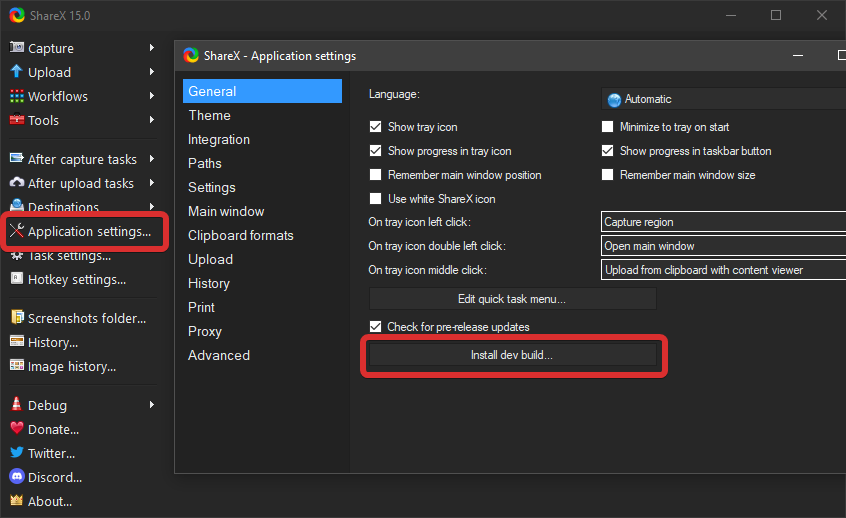
Preview builds can fix regressions early but may introduce new ones. Read the preview build notes carefully before deploying on production machines.
07 — Tips
Documents\ShareX or use in-app backup options so reinstalls are painless.
Windows Snipping Tool and Snip & Sketch are fine for one-off clips. ShareX wins when you need repeatable post-capture actions, historical task list, scrolling capture, or custom upload destinations. Greenshot and PicPick overlap partially; your choice depends on editor preferences and uploader ecosystem.
08 — Download
Direct downloads below target release v19.0.2 (March 2026 refresh of this page). When ShareX ships a newer build, we update these links—if a file 404s, retry later or contact the source you obtained ShareX from.
09 — FAQ
ShareX is open-source software; review the license bundled with the project for your compliance needs. This site is an independent guide and not affiliated with the core maintainers.
ShareX targets Windows. Other platforms have different tooling (e.g., Flameshot, Ksnip). Running on Linux typically requires Wine or a VM with mixed results.
See ShareX documentation for how to contribute translations and localize the UI.
10 — Deep reference
This block sits below the main guide and multiplies practical depth with thirty-three standalone notes—each different in angle (workflow, privacy, hardware, integrations, edge cases). Skim headings or search the page for keywords.
01 / 33
Order matters: copy to clipboard before upload if you need instant paste, or upload first when the link is what colleagues expect. Duplicate pipelines for “internal blur” vs “public crop” so you never apply the wrong mask.
02 / 33
Pair a dedicated “inbox” directory with a task that fires when new PNGs arrive—useful for scanners or exports from design tools. Keep paths short to avoid path-length issues on older network shares.
03 / 33
When the source is already an image in RAM, skip disk round-trips: push straight to your uploader and log the URL in history. Watch for huge clipboard bitmaps from 4K screens—they can spike memory briefly.
04 / 33
H.264 remains the safest default for compatibility; HEVC can shrink files but may stutter on older editors. If audio drifts, check sample-rate mismatches between game output and system devices.
05 / 33
Lower frame rates keep GIFs under email limits; for UI micro-interactions, 8–12 fps is often enough. Flat UI with few colors compresses best—gradients explode file size.
06 / 33
Use semi-transparent PNG marks for brand consistency; anchor to corners so ultrawide crops still look intentional. Version your watermark file name when marketing refreshes logos.
07 / 33
If your org runs a shortener API, wire it after upload so tickets stay tidy. Avoid public shorteners for sensitive previews—expiry and analytics vary unpredictably.
08 / 33
Capture a QR from a projector slide and run decode to paste the URL faster than typing. For outbound, embed Wi-Fi or cal-link QR in docs—verify scan distance with a phone before publishing.
09 / 33
Screenshots can inherit color profiles or timestamps you did not intend. Strip metadata for public posts when paths or machine names might leak; keep originals internally for forensics.
10 / 33
Per-monitor scaling can shift coordinates for region capture after sleep/resume. If edges look “off by one,” toggle GPU scaling or re-align monitors in Windows display settings.
11 / 33
Recording at 360 Hz panels may produce enormous files; cap capture FPS in settings when you only need 60 fps narrative. G-Sync/FreeSync rarely breaks capture, but exclusive fullscreen still surprises some titles.
12 / 33
When hooks fail, borderless windowed mode plus display capture often works. Anti-cheat software may block everything—document that limitation for streamers on your team.
13 / 33
Laptop Fn rows sometimes remap PrtSc; vendor utilities may intercept before ShareX sees the key. Map a rare combo (e.g., Ctrl+Alt+Shift+S) for zero conflict.
14 / 33
Delayed start reduces boot contention on HDD laptops. On shared PCs, prefer portable mode with settings beside the binary so user profiles stay clean.
15 / 33
Installers register shell extensions; portable builds skip that but travel on USB. Point both at the same custom uploader JSON via a shared network path if you want identical behaviour.
16 / 33
Export hotkeys, uploaders, and personal path rules before OS upgrades. Verify destination credentials separately—tokens in custom scripts may be device-scoped.
17 / 33
Robocopy or git-LFS a folder of JSON configs during maintenance windows. Never sync while the app is writing settings—close ShareX first to avoid corruption.
18 / 33
Full-page captures of SPAs may need scrolling capture instead of one-shot viewport. Disable lazy-load thrash by scrolling slowly so stitched frames align.
19 / 33
Dropping a file onto the main window can trigger a configured uploader task—handy for batching exports from Figma. Confirm file type filters so PDFs do not hit image-only pipelines.
20 / 33
Cap history rows or age so SSD journals stay small on laptops. Pair with a monthly folder archive job for compliance-heavy teams.
21 / 33
Corporate proxies may kill long uploads—chunked APIs or multipart uploads (when supported by your uploader) reduce failure rates. Retry with exponential backoff in custom scripts.
22 / 33
If the main window feels sluggish, clear thumbnail caches during downtime. Store caches on local SSD—not network drives—for snappy scrolling.
23 / 33
Hold modifier keys (per in-app help) for straight lines and fixed aspect ratios. Snap to edges when annotating mockups so arrows align to the grid you are critiquing.
24 / 33
Pixelate is reversible at small block sizes—use solid fills for IDs. Gaussian blur still leaks structure on high-contrast text; combine with crop when possible.
25 / 33
Tutorials benefit from visible cursor emphasis; keep rings subtle so viewers focus on the UI. Test on both light and dark themes before publishing.
26 / 33
Measure padding disputes between design and engineering with on-screen rulers instead of screenshots pasted into image editors. Screenshot the ruler overlay if you need async review.
27 / 33
When “upload works here but not there,” quick DNS lookups from the same machine isolate split-horizon issues. Document resolver IPs in tickets alongside traceroutes.
28 / 33
Before circulating a build internally, hash the installer and publish the digest beside the file. Reduces “did this get corrupted on USB?” debates.
29 / 33
Dead pixels and banding show up in solid colors—capture test slides for RMA evidence. Note panel model and firmware in the ticket text.
30 / 33
Legacy intranets still speak FTP; prefer SFTP or FTPS when available. Rotate passwords in both ShareX and the server config on the same change ticket.
31 / 33
For low-tech stakeholders, emailing captures can beat link sharing—watch attachment limits and virus-scan delays on outbound gateways.
32 / 33
POST JSON to internal bots when a screenshot lands—drive Slack threads or ticket prefills. Sign payloads with a shared secret so random URLs cannot spam your channel.
33 / 33
When annotating for WCAG reviews, use high-contrast arrows and avoid red–green only distinctions. Mention if the capture is sRGB vs wide-gamut so reviewers interpret colors correctly.
| Goal | Typical mode | Watch out for |
|---|---|---|
| Bug report | Region + arrow notes | Sensitive data in background |
| Release notes | GIF or short MP4 | Codec compatibility on Mac viewers |
| Legal hold | Lossless PNG + hash | Chain of custody metadata |
| Design critique | Pixel grid + color pick | Display scaling skew |
“The best ShareX setup is the one your future self can re-create from a single exported file and a short README—everything else is improvisation.”
11 — Field guide
This zone sits under the deep reference block. It is structured as five independent layers—each layer uses a different layout and fresh topics so nothing repeats the 33-card library above.
Ten bite-sized situations you can map to tasks and hotkeys. None duplicate the reference cards.
S01
Remote stand-up: capture a single IDE error line, blur the repo path, upload to the team bucket, paste in chat within ten seconds.
S02
Teacher recording: freeze a slide region, annotate with the pointer path, export PNG for the LMS—avoid full-screen video when bandwidth is poor.
S03
SOC triage: hash a suspicious dialog PNG before sharing externally; keep raw capture in a case folder with ticket ID in the filename.
S04
Sales demo: pre-stage a “clean” browser profile, capture region-only UI, strip bookmarks bar for a polished deck insert.
S05
RDP session: capture the remote desktop window, not the local shell—note DPI scaling so ticket readers do not misread pixel widths.
S06
Citrix published app: window capture beats fullscreen when the session chrome differs from native Windows.
S07
Battery-powered laptop: prefer still captures over long recordings on flights; defer GIF creation until wall power returns.
S08
VPN split tunnel: verify which interface a browser uses before capturing “public IP” evidence for networking tickets.
S09
Accessibility audit: capture focus rings and contrast side-by-side; log browser zoom level in the ticket body.
S10
Archive handoff: bundle PNG + JSON export of uploader config (redacted) so the next admin knows how URLs were formed.
Example filename templates (adapt to your rules)
{yyyy}-{MM}-{dd}_{HH}-{mm}-{ss}_{processname}
ticket-{TicketId}_v{rev}_step{nn}.png
{unix}-monitor{index}-w{width}px.png
Folder layout ideas
.\captures\YYYY\MM\ for chronological archives.\by-project\{slug}\ when work spans weeks.\staging\ for redacted exports only| Symbol | Typical meaning | Gotcha |
|---|---|---|
| {width} | Capture width in pixels | Changes with DPI per monitor |
| {unix} | Unix timestamp | Sort-friendly globally |
| {processname} | Active process | May be empty or generic |
09:00 — Stand-up evidence
One region grab of the sprint board; upload to internal wiki; link in meeting notes.
11:30 — Bug reproduction
GIF of the interaction; separate PNG of the stack trace with secrets blurred.
14:00 — Design review
Side-by-side captures with color picker readouts attached in Figma comments.
16:30 — Support escalation
Scrolling capture of logs; hash file archived next to the ticket export.
17:45 — Hygiene
Clear staging folder; verify no PII in today’s upload history; backup settings if you changed tasks.
Map which uploaders are approved, where data residency lives, and how long URLs remain valid. This site does not provide legal advice—treat captures like any other data class.